Technology Training is dedicated to delivering software training and support to Santa Clara students, faculty, and staff. We offer several learning formats including classes, open lab hours, consultations, and web help that are tailored to help users learn software used in teaching, learning, and scholarship.
Visit our training schedule to register for a course today as space is limited. Please contact the individual course instructor if you have questions. As always, our classes are free and open to all SCU students, faculty, and staff.
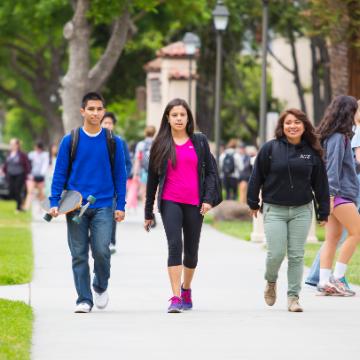
SCU Gmail, SCU ID, MySCU Portal & New Student Technical Support
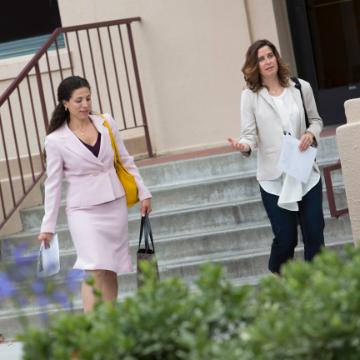
SCU Gmail, SCU ID, Microsoft, Adobe & additional University Supported Applications

Self-paced online software training modules for all staff, faculty, and students across campus
Additional Resources
Office Hours
Are you stuck on a piece of software? Do you need a quick refresher on technology for yourself or your department? Technology Training offers Software Support Office Hours in 60-minute sessions.
Our expert staff can work with your department or organization to develop and facilitate customized training sessions. Contact us to schedule a consultation.
Handouts and Class Exercise Files
Access digital copies of our class handouts, download exercise files and preview material for future classes. Santa Clara University login required.
Looking for something specific? Try our Technology at SCU page.