Tips:
Open OnDemand is the preferred method for interactive coursework and small jobs.
Use SSH and Slurm only when you need longer runtimes, custom environments, or resources not available through Open OnDemand.
Interactive Access via Jupyter Notebook
The HPC provides interactive access through Open OnDemand (OOD), a web portal that allows you to launch Jupyter notebooks, terminals, and other applications on the cluster without using SSH directly.
Through Open OnDemand, you can run Jupyter notebooks on HPC compute nodes while using your web browser.
Alert icon Log Out of Open OnDemand to Release Resources
- Closing the browser does not stop your job.
- Sessions keep running until the time limit expires.
- Go to My Interactive Sessions → Delete to stop your session and free resources.
1. Open the OOD Portal
Go to:
Log in with your university credentials.
2. Start an Interactive App
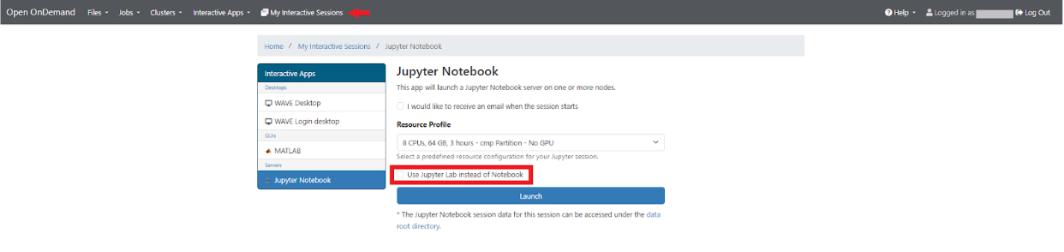
After entering your credentials you can navigate to the “My Interactive Sessions” tab in the top header and select Jupyter Notebook. You are then prompted to select your “resource profile” for accessing the HPC. The drop down menu contains a limited set of available profiles.
3. Choose Resources
Choose a profile appropriate for the amount of resources you need. You will then be logged into a compute node within the WAVE HPC.
4. Wait for Session to Start
Your job will be queued on the cluster.
When ready, click Connect to Jupyter.
This opens your notebook running on an HPC compute node.
Interactive sessions have a maximum runtime limit of 3 hours.
Ending Your Session
When finished:
-
Save your work
-
In Jupyter → File → Shut Down
-
Back in OOD → Delete or Terminate the session
-
Log out of Open OnDemand
Closing the browser alone does NOT stop the job.