Overview
The WAVE HPC has many diverse users that require different, and often incompatible software configurations. To help manage this complexity, we are using the Lmod: A New Environment Module System developed by the Texas Advanced Computing Center at the University of Texas. Lmod is a module system that simplifies the management and configuration of Environment Modules.
Why use modules?
Using modules allows a user to customize their software and environment variables for their use without impacting the other users of the HPC. Often, this is simply adding the program to the $PATH variable, but for software containing libraries and headers will also set $LD_LIBRARY_PATH and $CPATH. There are several benefits to using environment modules to set up your environment, such as:
- Ease of use
- The ability to revert to your previous environment
- The ability to easily switch your environment to try different versions of a program
To manage your software environment you will use the module command. The following is a brief summary of the commands that you will find useful to manage your software environment. A more thorough list can be found at: User Guide for Lmod.
What Modules Are Available?
The WAVE HPC has numerous modules including both varying software as well as different instances of specific software. To find out whether the software you want is on the cluster you can use the following command to get a list of all the modules installed on the system:
'module avail'
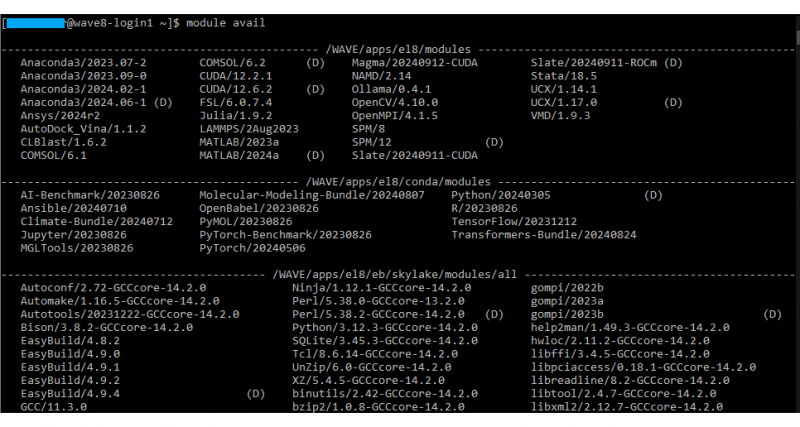
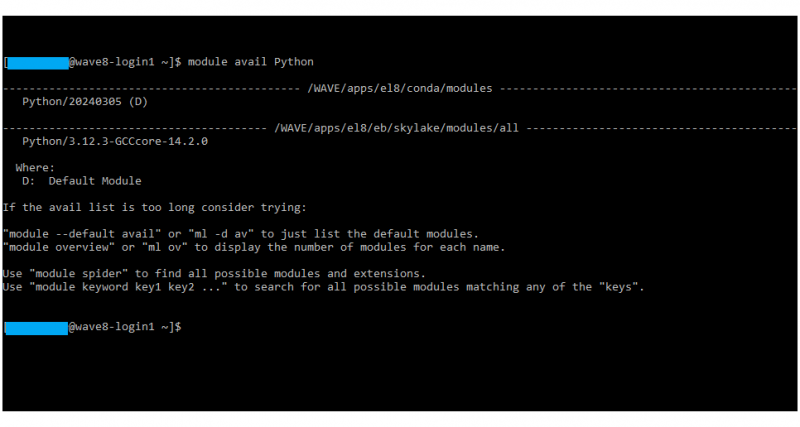
You can narrow the search list down by specifying a string to search for. For example, to see what versions of Python are available, you can type the command:
'module avail Python'
Module Types
We load software in the WAVE HPC from three different sources.
- Installed Software Packages
- Software Bundles created using Anaconda3/Conda
- Software compiled on platform using EasyBuild
Installed Software Packages
In the output of a 'module av' command, the individually installed packages are grouped in the section titled /WAVE/apps/el8/modules.
Anaconda3 Software Bundles
In the output of a 'module av' command, the Anaconda3 based modules are grouped in the section titled /WAVE/apps/el8/conda/modules.
EasyBuild Modules
EasyBuild is a software build and installation framework developed to simplify the management of scientific software on High Performance Computing (HPC) systems. It provides us a way to compile and install software from source in a structured and repetitive manner.
We use EasyBuild primarily to provide use a solid toolchain for development and runtime libraries. These include our base compilers ( GCC - GNU Compiler Collections ) and OpenMPI for distributed processing.
New versions of EasyBuild are released twice a year and we tend to upgrade the Easybuild packages on that cycle.
In the output of a 'module av' command the EasyBuild modules are grouped by various architectures (Skylake, Epyc, x86_64, etc.) in the sections titled /WAVE/apps/el8/eb/<microarchitecture>/modules/all or /WAVE/apps/x86_64/eb/modules/all.
Using Modules
Loading Modules
To view the modules that you currently have loaded in your local environment:
'module list'
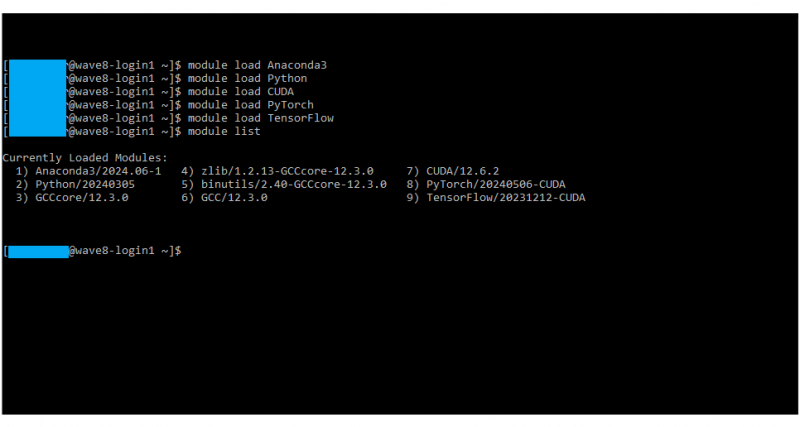
To load a module into your local environment you would use the 'module load' command. For example, say you would like to load Python
'module load Python'
Note: If there are multiple versions in the module directory and no default is listed, the modules program will attempt to load the latest version of the module. This may not be what you want. To avoid unexpected package loading, you should specify the entire module name and version. If there is only one version in a module directory then, the module version does not have to be specified and it will load the only version it finds. However, you should still specify the entire name and version to avoid surprises when a second version is added at a later point in time.
Switching Modules
You can switch modules versions easily. For example, if you want to switch from your current Python to a Python version 231003 you would load the specific version by specifying the version.
'module load Python/231003'
This command will replace any previous versions of Python
Unloading Modules
If you no longer need a module, you can remove it from your environment by unloading it. For example, if I no longer needed a version of Python in my environment, I can use the command:
'module unload Python'
Unloading an environment module will undo the changes that module made to the environment, which will restore any set variable to their previous values.
Alternatively, if you want to clean your environment entirely (remove all loaded modules), you would use the following command:
'module purge'
Module Sets
Lmod has a mechanism which allows you to save sets of modules that can then be restored. This is a convenient way to switch out a whole bunch of modules to change the environment quickly. Module sets are primarily beneficial when you typically load several modules. This is because:
- Module sets can be loaded with one command line
- The same command can be used at any time
- Restoring a module set runs a module purge which will ensure that the environment, or at least the part controlled by modules, is predictable.
To use this, simply load the modules that you want to have loaded as a set. Then run the following command:
'module save'
This command will save the loaded modules as the default set. To restore it, run:
'module restore'
Note: The above command will restore your modules to the system default if you do not have a default module set saved. In addition to saving/restoring, a default set you can also assign a name to the collection and save multiple collections. For example, I can create a set called mymodules.
'module save mymodules'
'module restore mymodules'
If you have several different environments for different job types then saving a module set for each job type can save time and ensure consistency.
Adding Additional Software
What if the software you need is not pre-installed as a module on the system? There are two options available.
Installing Software in Your Home Directory
An HPC user can install anything you like in your home directory, provided it can be installed as an unprivileged (non-root) user. Many things can be installed fine through this method and it will not impact other users of the system.
Requesting New Software or Software Upgrades
If many users of the HPC require a specific piece of software or environment, such as members of a research or students in a teaching lab, the HPC Support Team can manage the installation. New software installations and software upgrades must be done by the HPC Support Team.
To request new software or a software upgrade, please email wavesupport@scu.edu with the following information:
-
Your Full Name
-
Department
-
Your SCU Email Address
-
Contact Phone Number
-
Requested Software
-
Version Requested (Latest/Version #)
-
Is this an update request? (Yes/No)
-
Download Link for the Software
-
Is the software open source? (Yes/No)
-
Software Funding Source (Free/Existing Research Funding/Request New Funding)
-
Reason for Request (optional)
Make sure all necessary fields are filled out before sending your email.
Additional Lmod Documentation
You can find the complete Lmod information from the Lmod website.
Additional Lmod help can also be found at: