There are many command-line-based programs that can be used to move files from your local Linux machine to the HPC and back, including scp, rsync, and sftp.
Copying Files To/From the HPC using SCP
Use the scp (secure copy) utility to copy most files. It uses the same configuration and parameters/syntax as SSH and the Linux copy command. For additional details and resources, please see the Secure copy protocol page.
Users can transfer files from local machines to the HPC cluster using the following scp command:
scp file_to_copy user@login.wave.scu.edu:/path/to/location
To copy an entire directory add and additional '-r' parameter:
scp -r directory_to_copy user@login.wave.scu.edu:/path/to/location
Similarly, the command to copy files from the HPC cluster to a local machine is:
scp user@login.wave.scu.edu:/path/location/file_name file_name
Copying Files To/From the HPC Using rsync
Use rsync to copy files or entire directory structures between your local machine and the HPC. rsync has the added benefit that it will synchronize files and directories between two different systems. However, keep in mind that it is not natively supported on Windows.
Users can transfer a single file from a local machine to the HPC using the following command. The -a flag preserves the file metadata, like the modification time and permissions, and the -v flag prints out the path of each file copied. When copying many files, you may want to skip the -v.
rsync -av file_to_copy user@login.wave.scu.edu:/path/to/location
To copy an entire directory and everything in it:
rsync -av directory_to_copy user@login.wave.scu.edu:/path/to/location
If you only want to copy the contents of a directory and not the directory itself, add the final '/' (and be careful when tab completing not to include it by accident!)
rsync -av directory_to_copy/ user@login.wave.scu.edu:/path/to/location
Similarly, you can rsync files/directories from the HPC back to your local machine
rsync -av user@login.wave.scu.edu:/path/to/location/directory_to_copy.
Copying Files To/From the HPC Using sftp
‘sftp’ is another operation based on the SSH protocol, granting it the ability to encrypt communications. However, unlike ‘scp’ which transfers files in a single command, ‘sftp’ provides an interactive interface similar to an FTP client.
NOTE: ‘sftp’ natively supports Windows shell in Windows 10 and later versions.
To initiate a ‘sftp’ connection, please follow these steps:
- Start a ‘sftp’ connection with the HPC by typing:
sftp <username>@login1.wave.scu.edu - Navigate to the path on your local computer by using the local cd command. Type in:
lcd /path/to/local/<file> - Navigate to the path on your HPC account by using the regular cd command. Type in:
cd remote/directory - Use the 'put' command to copy over a file from the local device to the HPC.
put <file>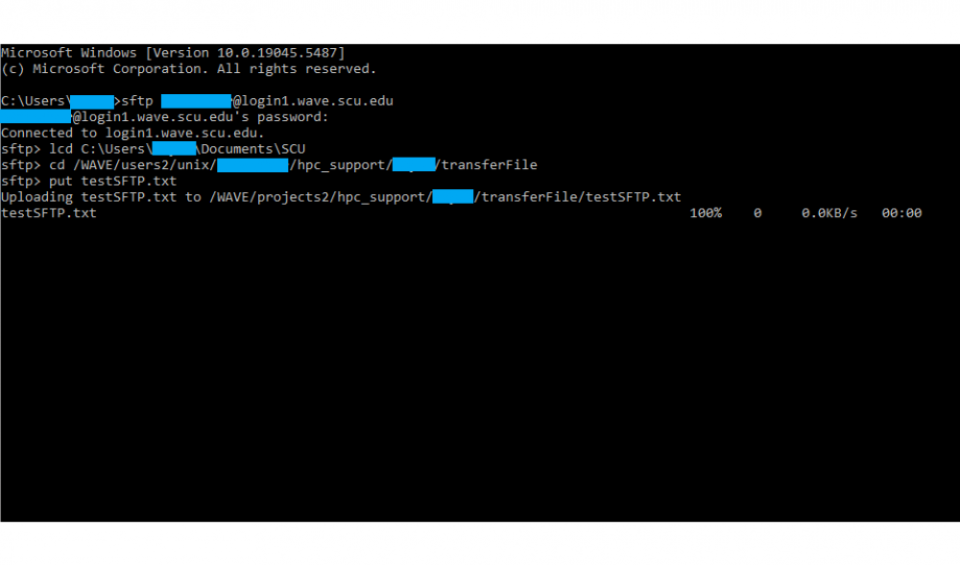
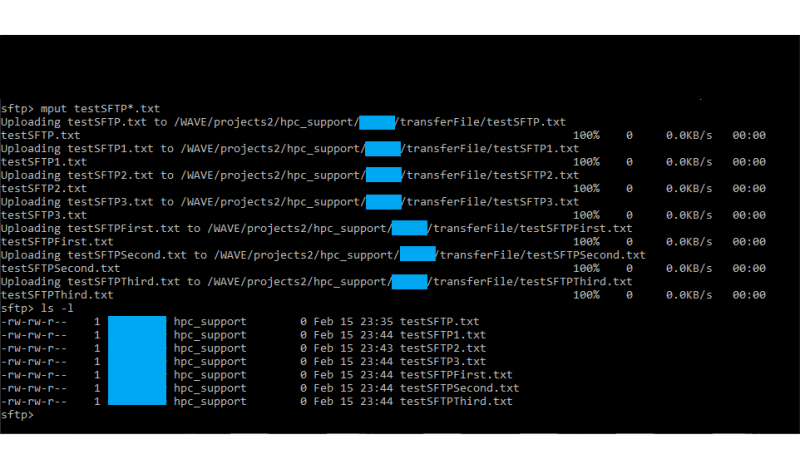
- You can also use the command ‘mput’ to copy over multiple files in one line.
mput <file1> <file2> <file3> <etc> - Using the ‘*’ symbol after the name of a file will copy all files that have the same name before the ‘*’ and following a certain pattern afterwards. For example:
mput testSFTP*.txt - Alternatively, you can use ‘get’ and ‘mget’ to download one or multiple files from the HPC over to your local computer.