This tutorial provides a practical introduction to MATLAB, with a focus on effectively running and scaling MATLAB workloads on the WAVE High Performance Computing (HPC) cluster. It is suitable for both new users and those looking to extend MATLAB use into HPC workflows. The tutorial covers:
- What MATLAB is and when to use it
- Comparison of MATLAB and Python for scientific computing
- Basic MATLAB syntax and scripting
- Running MATLAB on WAVE via
- Interactive sessions
- SLURM batch jobs
- Executing parallel MATLAB jobs using
- Implicit parallelism
- explicit parallelism
What is MATLAB?

MATLAB, short for Matrix Laboratory, is a high-level programming language and numerical computing environment developed by MathWorks. It is widely used in academia, research, and industry for a range of applications, including numerical computation, data analysis, machine learning, signal processing, image processing, control systems, and visualization. Its built-in toolboxes and specialized functions make it particularly effective for tasks involving matrices, linear algebra, and algorithm prototyping.
When to use MATLAB?
- Matrix and Linear Algebra Operations: MATLAB excels at matrix manipulations, which makes it ideal for linear algebra problems, eigenvalue computations, and solving systems of linear equations.
- Signal and Image Processing: MATLAB’s toolboxes and functions for processing signals and images are highly optimized and easy to use.
- Control Systems and Robotics: MATLAB and Simulink are widely used in industries like aerospace, automotive, and robotics for designing and simulating control systems.
- Algorithm Prototyping: MATLAB is perfect for developing and testing algorithms due to its simple syntax and pre-built functions.
- Numerical Simulation: Tasks like solving differential equations, optimization problems, or Monte Carlo simulations are made simpler with MATLAB.
MATLAB vs Python
- Ease of Use for Numerical Computing: MATLAB is designed for numerical and matrix computations, making equation and arithmetic-based tasks straightforward and intuitive.
- Built-In Toolboxes: MATLAB provides a wide range of pre-optimized, domain-specific toolboxes (e.g., Signal Processing, Image Processing, Simulink) that save time compared to manually setting up and integrating libraries in Python.
- Performance and Optimisation: MATLAB’s proprietary algorithms and seamless multithreading/GPU support provide superior performance for heavy numerical tasks, while Python requires manual optimisation using external libraries like Numba or CUDA.
- Advanced Visualisation: MATLAB offers intuitive, high-quality 2D/3D plotting and interactive GUIs with minimal coding, whereas Python’s Matplotlib and Seaborn require more customisation and effort.
Basic syntax of MATLAB
To get started with MATLAB, check to make sure you have the MATLAB module by typing:
module avail MATLABAfter confirming that it exists, make sure to load the module by typing:
module load MATLABinto your directory. Type the following code into a new MATLAB file to test and gauge an understanding of how it works.
Some key syntax of MATLAB is shown below:
- Print Statement: The ‘fprintf’ command in MATLAB is used to display formatted text and variable values to the command window (standard output). Note: Text following the ‘%’ symbol is considered a comment and is ignored during execution.
fprintf('Hello, world!\n'); % Print a simple message with a newlineData Types: MATLAB supports various data types to handle different kinds of data efficiently. Below is a brief overview of the commonly used types.
int_val = int32(5);   % Integer

float_val = 3.14;   % Floating point

char_val = 'A';   % Character

str_val = "MATLAB";           % String

bool_val = true;   % Boolean (logical)

arr_val = [1, 2, 3];   % Array

cell_val = {'MATLAB', 42, true};  % Cell array


% Print all values

fprintf('Integer: %d\n', int_val);

fprintf('Float: %.2f\n', float_val);

fprintf('Character: %c\n', char_val);

fprintf('String: %s\n', str_val);

fprintf('Boolean: %d\n', bool_val);

fprintf('Array: [%s]\n', num2str(arr_val));

fprintf('Cell Array: {%s, %d, %d}\n', cell_val{1}, cell_val{2}, cell_val{3});
Variables: Variables are created by simply assigning a value to a name.
x = 5; % Assign value 5 to variable x

y = 3.14; % Assign value 3.14 to variable y
Comments: Comments are preceded by a percent sign (%)
% This is a single-line comment

x = 10; % This is an inline comment

%{ You can make a block comment

by using ‘%{‘ and ‘}%’ and MatLab

will ignore anything between it.

%}
Basic Operations: MATLAB supports standard arithmetic operations like addition, subtraction, multiplication, division, etc.
a = 3 + 2; % Addition

b = 5 - 1; % Subtraction

c = 4 * 2; % Multiplication

d = 6 / 3; % Division

e = 5^2;   % Exponentiation
Arrays and Matrices: MATLAB is built around matrices and arrays.
A = [1, 2, 3];          % Row vector

B = [1; 2; 3];          % Column vector

C = [1, 2, 3; 4, 5, 6]; % 2x3 Matrix, where ‘;’ denotes a new Row Vector

D = [1, 2; 3, 4; 5, 6]; % 3x2 Matrix
Indexing Arrays and Matrices: MATLAB uses 1-based indexing for arrays and matrices.
A = [1, 2, 3, 4]; % Create an array

x = A(2);         % Access the second element (result: 2)

y = C(2,2);       % Access element at row 2, column 2 of matrix C (result: 5)
Functions: MATLAB provides built-in functions for many operations.
sum_value = sum(A);       % Sum of all elements in A

diff_value = diff(A);     % Calculates the difference between adjacent elements in A -> o/p: [1 1 1]

prod_value = prod(A);     % Product of all elements in A

max_value = max(A);       % Maximum value in A

min_value = min(A);       % Minimum value in A

mean_value = mean(A);     % Mean of elements in A

median_value = median(A); % Median of elements in A

std_value = std(A);       %Standard deviation between elements in A

sort_A = sort(A);         % Sorts the elements in A
Control Flow: Conditional statements and loops in MATLAB are similar to other languages.
% If-Else Statement
if x > 10

disp('x is greater than 10');

else

disp('x is less than or equal to 10');

end


% For Loop

for i = 1:10

disp(i);

end


% While Loop

while x < 10

x = x + 1;

end
Functions and Scripts: Functions are defined in separate files, while scripts contain a sequence of commands.
% Define a function

function result = square(x)

result = x^2;

end


% Call the function

y = square(5); % y = 25
Plotting: MATLAB has extensive plotting capabilities.
x = 0:0.1:10; % Create an array of values

y = sin(x); % Compute the sine of each value

figure; % Create a new figure

plot(x, y); % Plot y against x

title('Sine Wave'); % Title for the plot

xlabel('x'); % Label for x-axis

ylabel('sin(x)'); % Label for y-axis

saveas(gcf, 'sine_wave.png'); % Save the current figure as a PNG image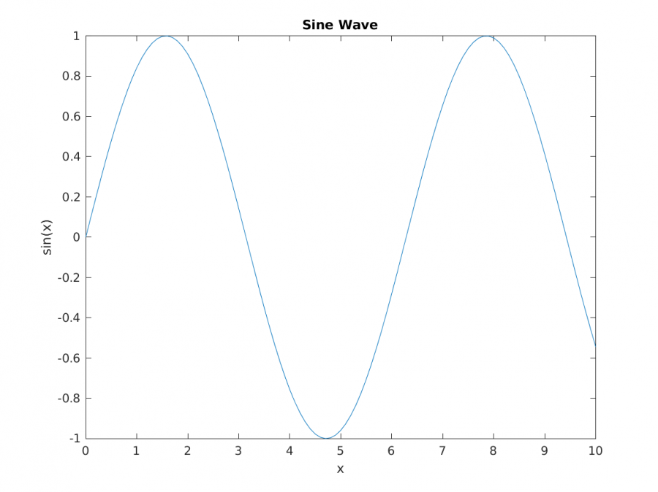
Saving and Loading Data: MATLAB allows you to save and load variables to/from files.
save('datafile.mat', 'x', 'y'); % Save variables x and y to a file

load('datafile.mat'); % Load variables from the file
Calling an External Function in a MATLAB Script: This example demonstrates how to call a function stored in a separate file while ensuring MATLAB can access it using addpath(). If using multiple function directories, consider adding them in startup.m to set paths automatically when MATLAB starts.
square.m
function y = squareNumber(x)

y = x^2;

end
main.m
% Add the path to the function directory

addpath(path_to_your_script)


% Call the function

x = 5;

result = squareNumber(x);


% Display result

disp(['Square of ', num2str(x), ' is ', num2str(result)]);
For more information on how to use MATLAB refer to: Getting Started with MATLAB
Sample MATLAB script
The below script first creates a vector outside the loop and then iterates through its indices to compute the total sum using a loop. The final sum is displayed in the output file.
z = 0;

xAll = 0:0.1:10000; % create a vector outside of a loop

for i= 1:length(xAll)

    x = xAll(i);

    z = z + x;

end

fprintf('%f\n', z);

% Copyright 2010 - 2014 The MathWorks, Inc.
Output:
For more such examples, refer to: MATLAB - Examples
Ways to run MATLAB on WAVE
There are three ways to run MATLAB on WAVE:
- Run MATLAB on the WAVE HPC in an interactive session.
- Run MATLAB on the WAVE HPC in a SLURM batch job.
- Run MATLAB IDE on WAVE using OpenOnDemand.