Accessing Zoom recording files in the cloud
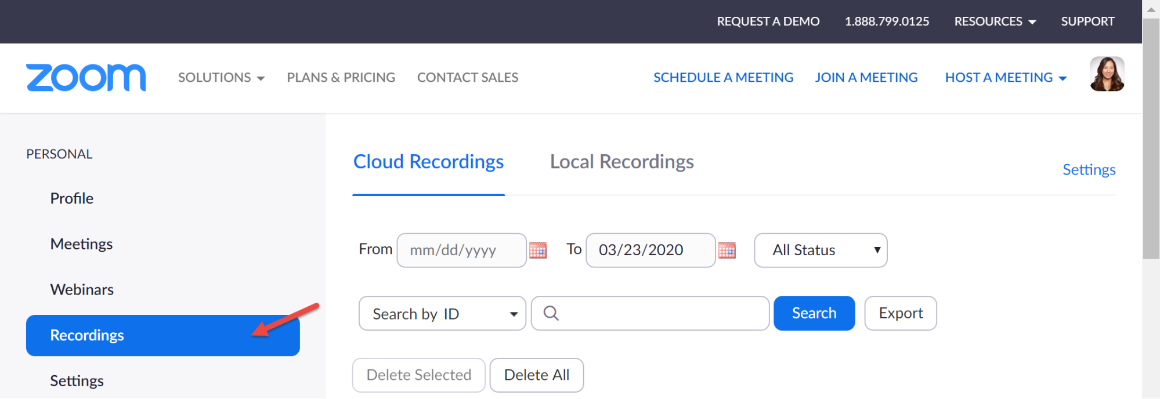
Your recordings will be available in the Zoom web portal under Recordings
Visit https://scu.zoom.us/recording and sign in with your SCU credential.

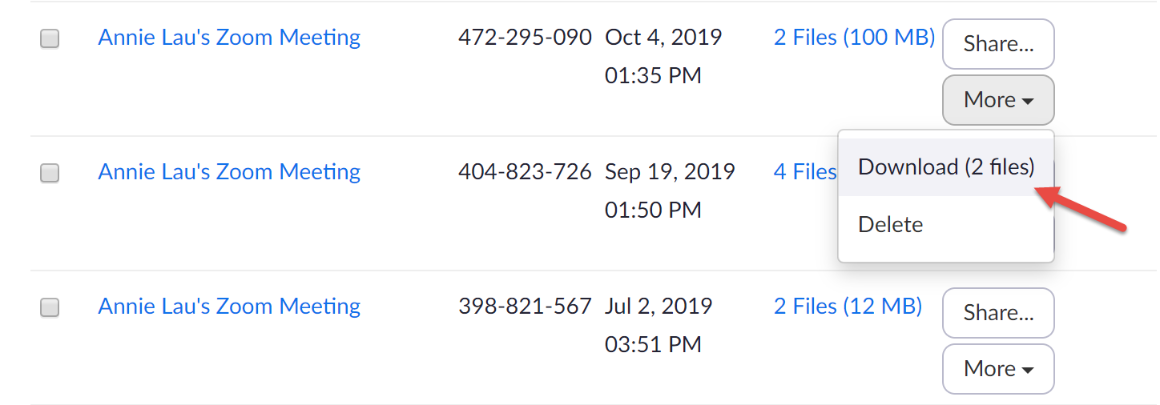
Select the desired recording session, click More button > Download files. This will download all versions of your meeting recording.
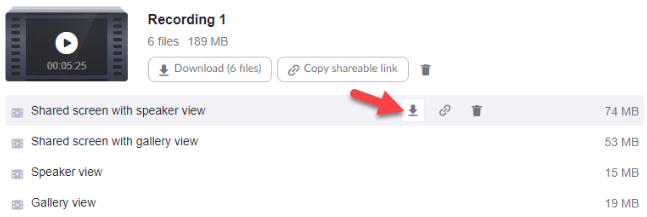
You can also click on the Meeting Topic and select only the files you want to download. Depending on the features used during the meeting you may have anywhere from 2 to 10 files.
Hover over the desired video to reveal the action buttons. Click on the  button to download the video.
(You can click on each title to view the video to make sure that is the version you want, before downloading it.)
The video will download to your default download folder on the computer.
For training on advanced features and troubleshooting, please contact Media Services.