To get an accurate list of attendees for a meeting, you will need to have Enabled Authentication Profiles in your meeting settings.
This ensures no attendee appears in the report as a Guest or with an inaccurate name. View our Zoom Privacy Settings instructions to learn how to Enable Authentication Profiles for your meetings.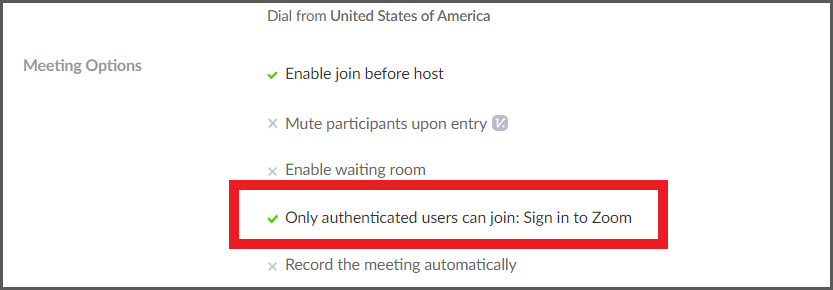
Generate Attendee Reports in Zoom
- Sign in to the Zoom web portal (scu.zoom.us)
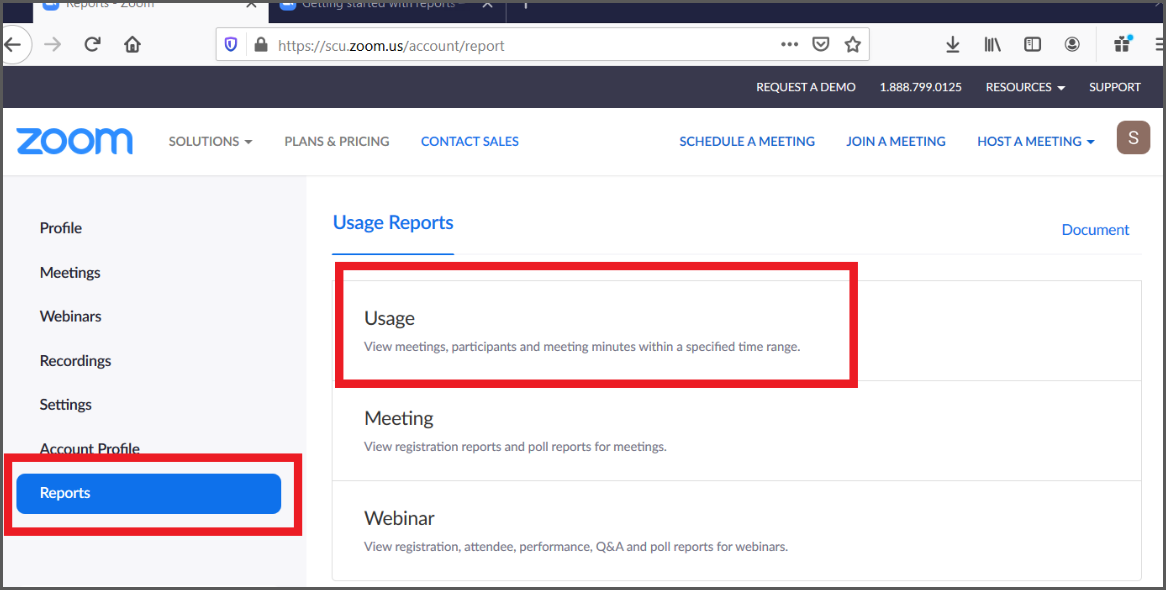
- Select Reports > Usage
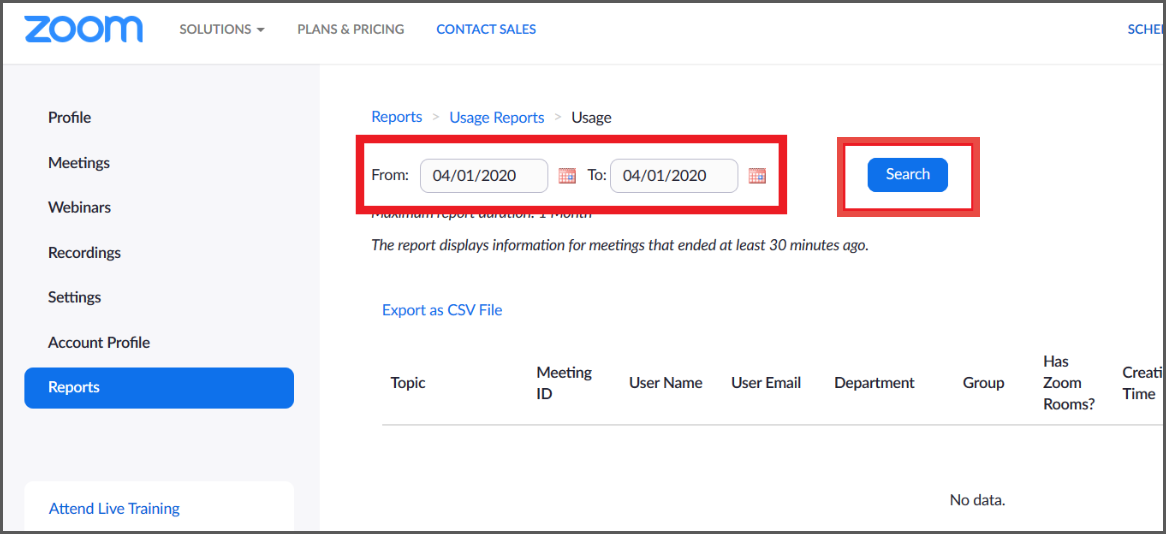
- Enter the Date of the meeting, then select Search
- Find the meeting in the list you want and select the Participant number
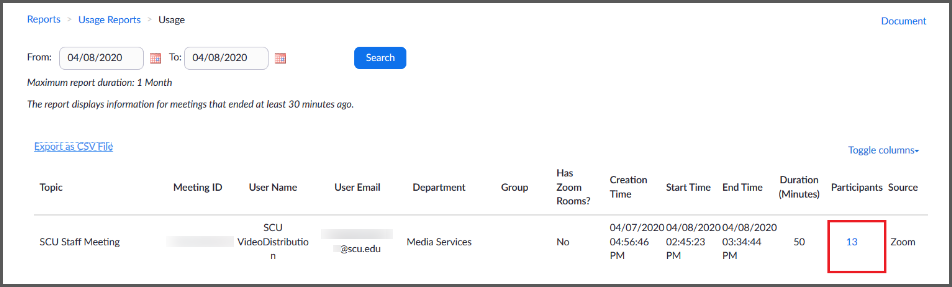
- From the participants list select Export
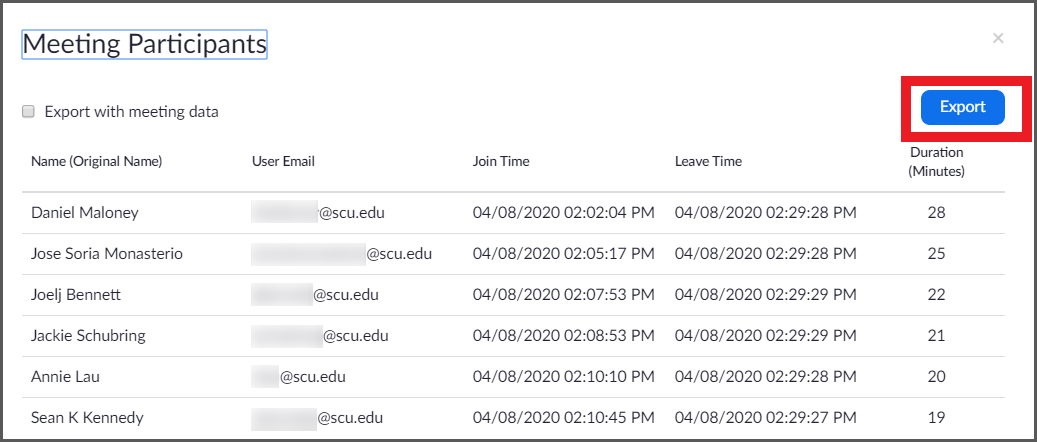
- A CSV file will be downloaded onto your computer. The report contains the User, Join Time, Leave Time, and Duration.