Recording Active Speaker and Shared Screen Separately
If selected, this is the default format to import into Panopto
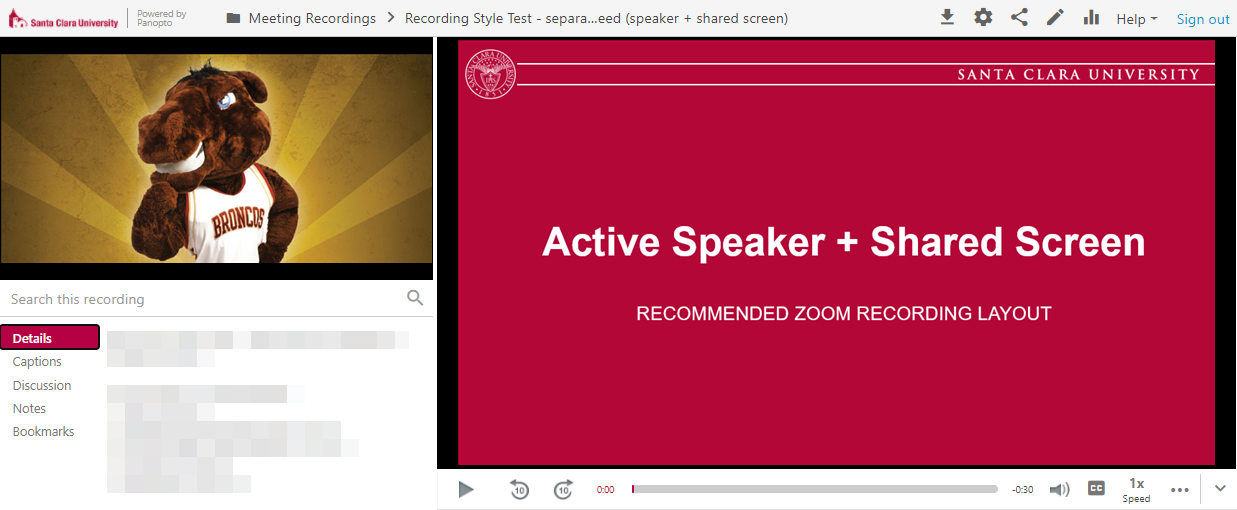
- Active speaker always shows in camera view (default smaller window).
- Shared content always shows in the main content view (default bigger window).
- When not sharing content, only the active speaker view will be captured in the large single window format.
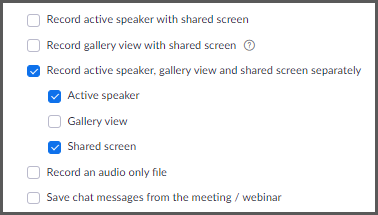
Record Active Speaker with Shared Screen in the same Window
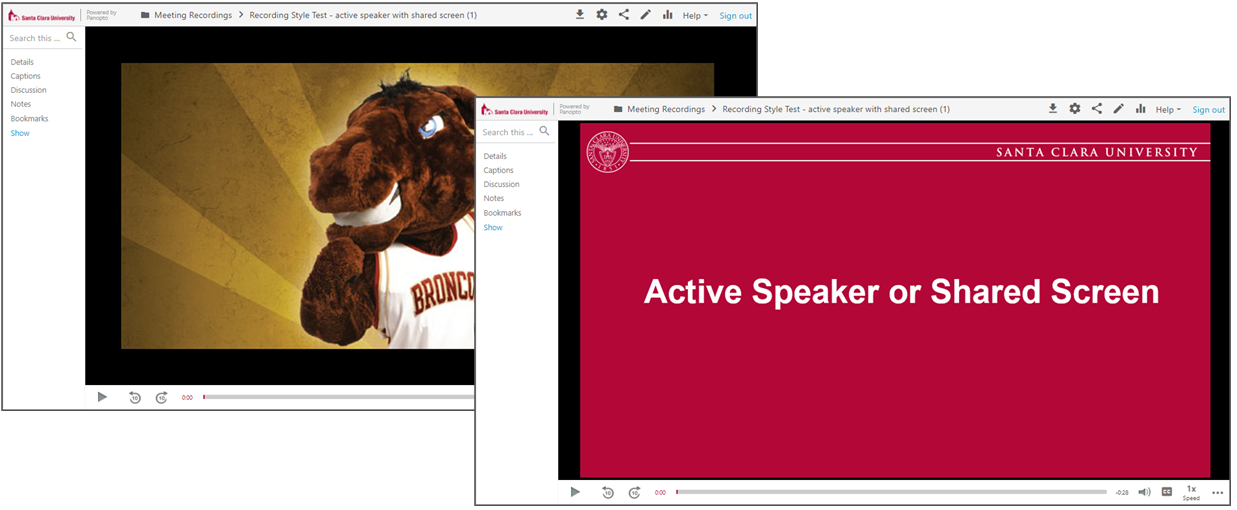
- Only one screen is recorded the entire time.
- When not sharing screen, the video of the person talking will be captured
- When sharing, no other video will be captured
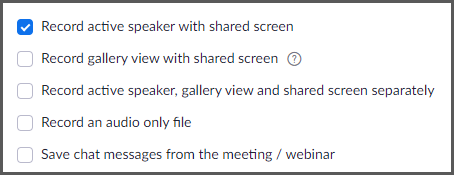
Record Gallery View with Shared Screen in the same Window
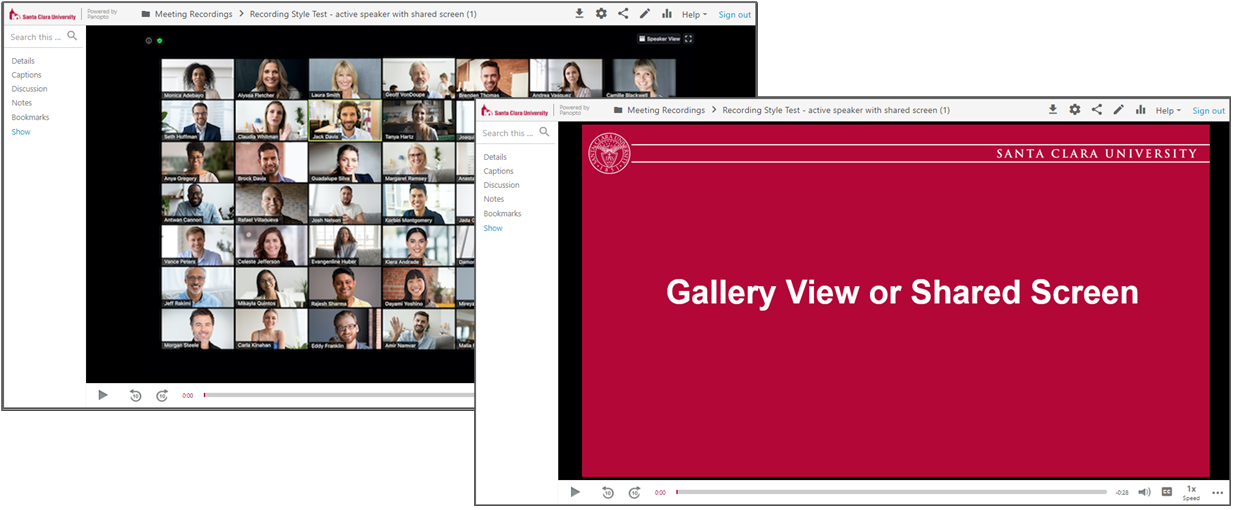
- Only one screen is recorded the entire time.
- When not sharing screen, the video of the gallery view will be captured
- Only the active gallery view page is recording
- When sharing, no other video will be captured
- If the host is the only sharing video, the recorded format will default to Speaker view with shared screen.
- Participants who do not have their camera turned on will not be recorded.
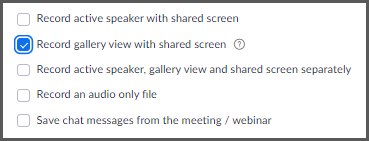
Additional Settings
There are additional settings you can toggle to customize your meeting recordings.

Save chat messages from the meeting / webinar
- Public chat messages are saved to your local computer
- Chat message is also available on Zoom recording website

Add a timestamp to the recording
Actual meeting date and time will be embedded to the bottom right corner of the video in the recording

Display participants' names in the recording
The participant's name will be added to the bottom left corner of the video in the recording

Record thumbnails when sharing
- Presenter's photo/video thumbnail is showing on the top right corner of the recording
- Thumbnail may block a portion of the shared screen

Optimize the recording for 3rd party video editor
- Video will take longer to process
- Video file size will be bigger

Audio transcript
We recommend turning this feature on
Provide computer generated captions for Zoom & Panopto. File is saved in simple text format and can be edited

Save poll results shared during the meeting/webinar
We recommend turning this feature off
The window showing the poll result shared in class will be included in the video recording. This is different than the poll report in CSV file that can be downloaded after the meeting ends.
For training on advanced features and troubleshooting, please contact Media Services.