Media Services schedules recurring lecture recordings for almost 600 classes each quarter.
It is recommended to double-check and let us know if your recording schedule is different from what was requested, or if your classroom assignment has changed since making the request.
How to check your recording schedule
1. Log in to the SCU Portal > Camino course tile > select your desired course.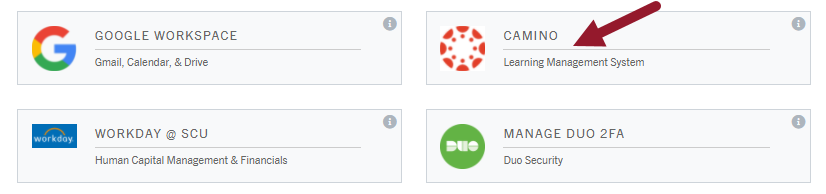
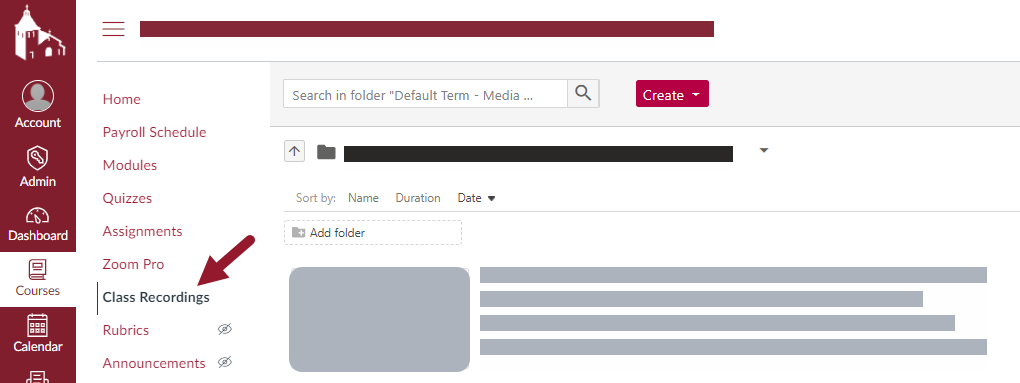
2. Click the Class Recordings tab on the left hand column.
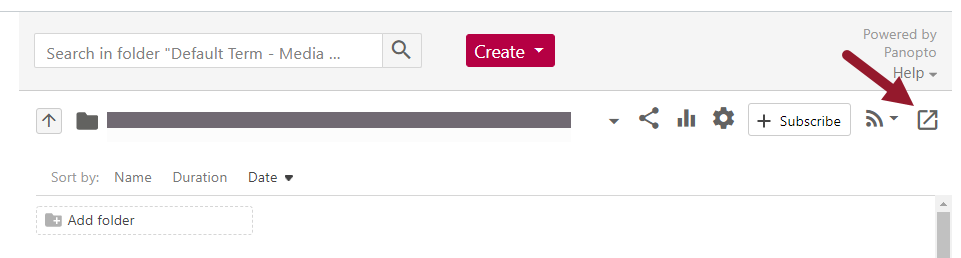
3. In the upper right corner, click the square icon with an arrow pointing out. This opens a new tab with your folder in Panopto (the software behind Class Recordings).
4. Check the Clock icon to view scheduled recordings

5. Scroll through and ensure that the dates, times, and recorder name match your class time and location.
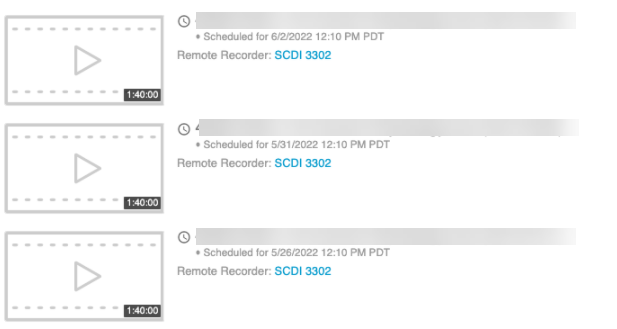
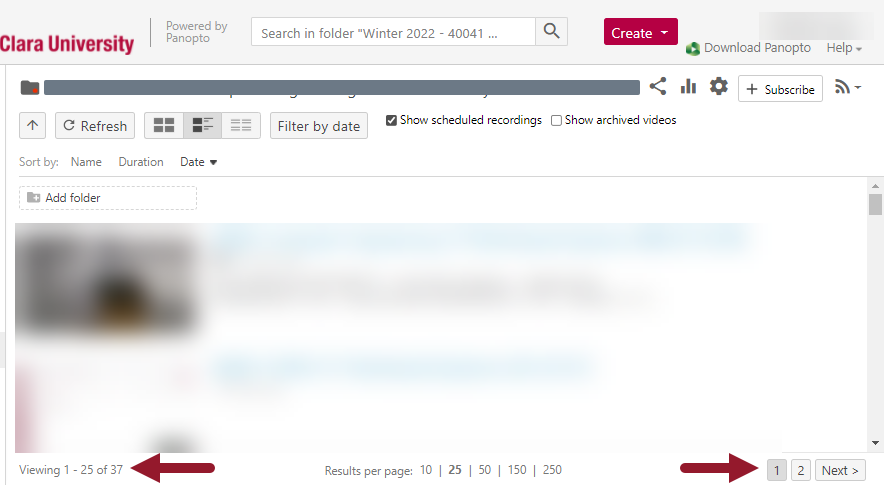
Note: There may be more than one page! Scroll all the way down and click next page or adjust results per page to see more.
Email Media Services with your 5-digit course number if you see any scheduling errors.