If you have already created a Zoom meeting using the Zoom website or the desktop client, and want to import the meeting information to the Zoom Pro tab of your Camino course site, follow the steps below:
PLEASE NOTE:
- Each Camino course site can support multiple unique meeting IDs, but each unique meeting ID can only be associated with one Camino course site.
- You will have to route the recording separately when using the import method (see instructions below).
HOW DO I IMPORT A MEETING I ALREADY SCHEDULED INTO THE ZOOM PRO TAB OF MY CLASS
- Locate the Zoom meeting ID on the Zoom Website...

... or from the Zoom desktop client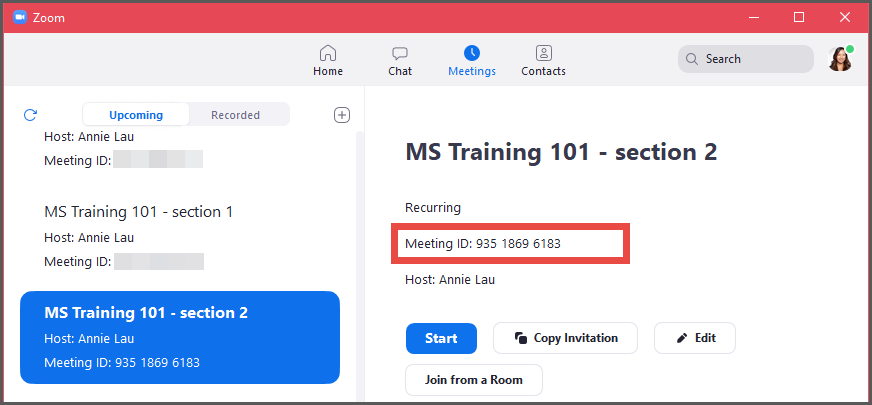
- Navigate to the Zoom Pro tab of your Camino course site.
Hover over the icon, then select Import Meeting.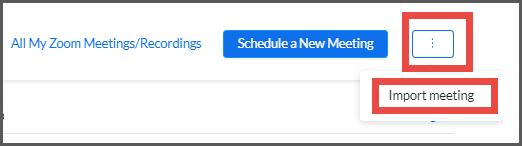
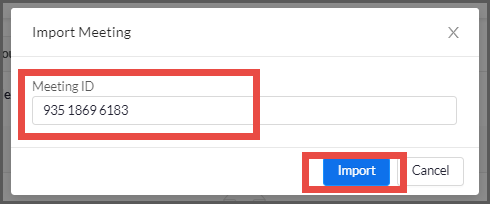
- Paste the Meeting ID information, then click Import.
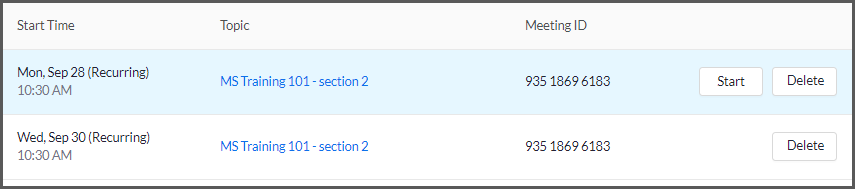
- Your meeting should now be imported to your Zoom Pro tab.
ROUTE MEETING RECORDING TO THE CLASS RECORDING TAB OF YOUR CAMINO COURSE SITE
If you use the manual meeting feature, the video recording will still show up in your personal Meeting Recordings folder in Panopto.
In order to have the recordings show up automatically to the Class Recordings tab in your Camino course site, please follow the steps below:
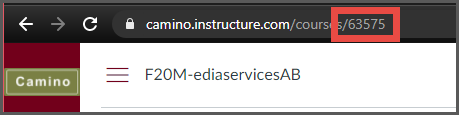
- Navigate to your Camino course site. Copy the last 5 digits of the course URLNote: this is NOT the eCampus 5-digit course ID.
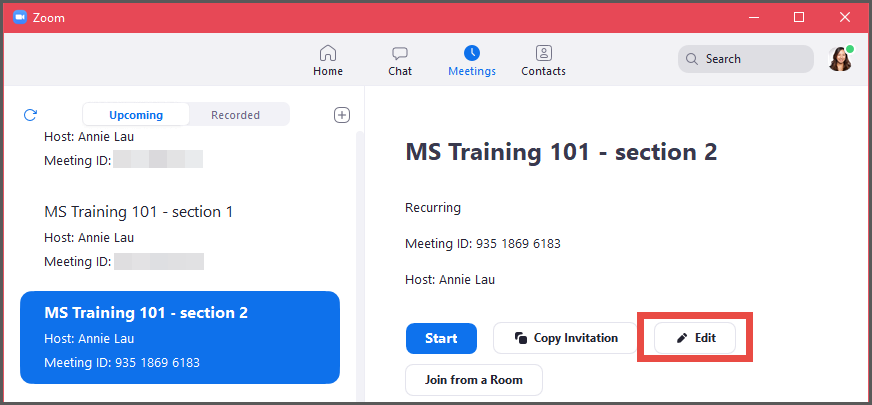
- Navigate to the desired Meeting details from the Zoom website or the desktop client and click Edit.

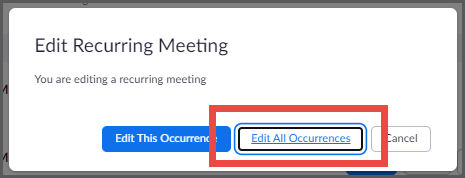
- When prompted, select Edit All Occurrences.
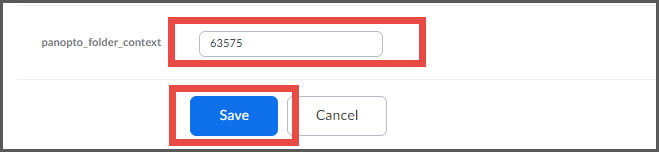
- Scroll all the way down to look for the panopto_folder_context field. Enter in the 5 digit number from the Camino course site URL, then click SAVE.
Your future course meeting recordings will automatically show up in the Class Recordings tab of your Camino course site, instead of your personal Meeting Recordings folder.
If you need to move the recordings, please follow the instructions on how to move a class recording.
WHAT IF I IMPORTED THE MEETING TO THE WRONG COURSE
Each Camino course site can support multiple unique meeting IDs. But each unique meeting ID can only be associated with one Camino course site.
If you imported the meeting to the wrong course site, you will need to delete the meeting then recover it before attempting to re-import to the correct course site.
- Navigate to the Zoom Pro tab of the Camino course site. Click Delete.

- When prompted, click Delete all of the occurrences.
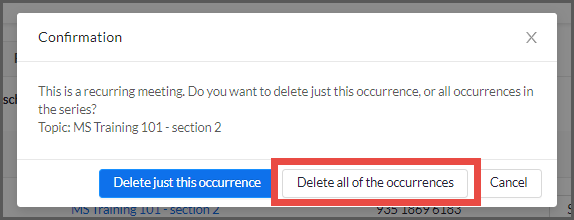
You may receive an email notifying you this meeting has been removed. - Navigate to the Zoom website (MySCU Portal > click the Zoom tile).
Click the Meetings tab on the left side of the screen.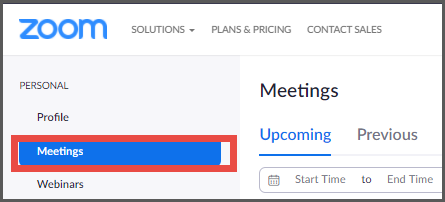
- Click the Recently Deleted link on the top right hand corner of the screen.
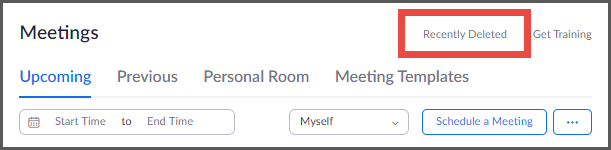
- Locate the desired meeting, then click Recover.

- If prompted, click Recover All Occurrences.
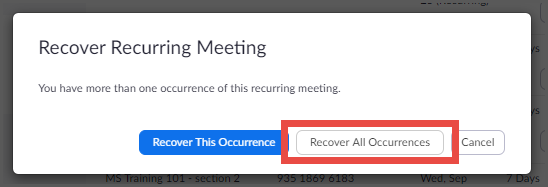
Now you are ready to repeat the steps above to re-import the Meeting ID to the correct Camino course site, and to route the recordings to the Class Recordings tab.
(Please note that the past meeting reports will be re-imported to the new course site, but the recordings will stay in its original folder location. If you need to move the recordings, please follow the instructions on how to move a class recording.
For training on advanced features and troubleshooting, please contact Media Services.
How do I Import a meeting I've already scheduled into the Zoom Pro tab of my class?
- Locate the Zoom meeting ID on the Zoom Website...
... or from the Zoom desktop client
- Navigate to the Zoom Pro tab of your Camino course site.
Hover over the icon, then select Import Meeting.
- Paste the Meeting ID information, then click Import.
- Your meeting should now be imported to your Zoom Pro tab.
How to route meeting recording to the class recording tab of your Camino course.
If you use the manual meeting feature, the video recording will still show up in your personal Meeting Recordings folder in Panopto.
In order to have the recordings show up automatically to the Class Recordings tab in your Camino course site, please follow the steps below:
- Navigate to your Camino course site. Copy the last 5 digits of the course URLNote: this is NOT the eCampus 5-digit course ID.
- Navigate to the desired Meeting details from the Zoom website or the desktop client and click Edit.
- When prompted, select Edit All Occurrences.
- Scroll all the way down to look for the panopto_folder_context field. Enter in the 5 digit number from the Camino course site URL, then click SAVE.
Your future course meeting recordings will automatically show up in the Class Recordings tab of your Camino course site, instead of your personal Meeting Recordings folder.
If you need to move the recordings, please follow the instructions on how to move a class recording.